OpenReceive for WordPress + Easy Digital Downloads
Accept Bitcoin & Stablecoin Payments With WordPress + Easy Digital Downloads
Sell digital downloads for Bitcoin Lightning with Easy Digital Downloads and the OpenReceive plugin from the WordPress.org directory. EDD keeps every order, receipt and download link; OpenReceive settles the payment in your own wallet.
Plugin
Tested live · Oct 18, 2026 · 0.4.28
Copy agent directions — Paste into Claude Code, Codex or Cursor to add OpenReceive to your WordPress + Easy Digital Downloads app.
Why OpenReceive
- EDD stays in charge. The customer picks the method at EDD's checkout and pays on its purchase confirmation page. EDD completes the order, sends its receipt and opens the downloads, as with any other gateway.
- No separate payment service. Payment attempts live in two tables of the WordPress database you already run. The checkout's script ships inside the plugin.
- Receive-only wallet permissions. The plugin checks the NWC code with your wallet before saving it, stores it encrypted, and refuses a code that can spend.
- Stablecoins, optional. With a swap provider code, customers can pay in USDT, USDC, ETH or SOL, and you still receive Bitcoin in the same wallet.
See the plugin at work
Receive Lightning payments straight into a wallet you control, with a receive-only NWC code. Optionally let payers pay with USDT, USDC, ETH or SOL through a Lightning Swap Connect provider, which converts these payments to BTC over Lightning in your connected wallet. Asset and network availability depends on the provider. Requires BTCPay Server 2.4.4 or later.
The whole setup in 30 seconds:
https://openreceive.org/assets/btcpayserver/basic-btcpayserver-demo-compressed.mp4
Install the plugin
Sign in to your BTCPay Server as a server administrator. If someone else hosts your server, ask them to install the plugin for you.
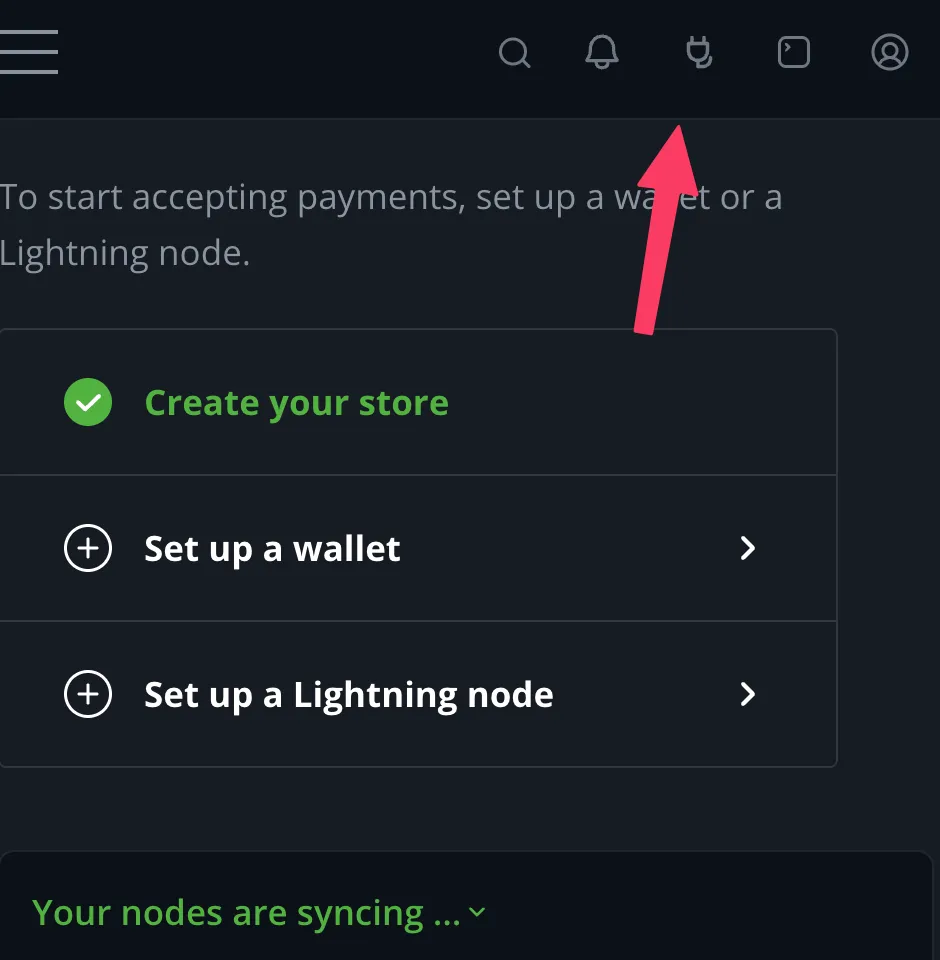
1. Open the Plugins menu — the plug icon in the top-right corner.
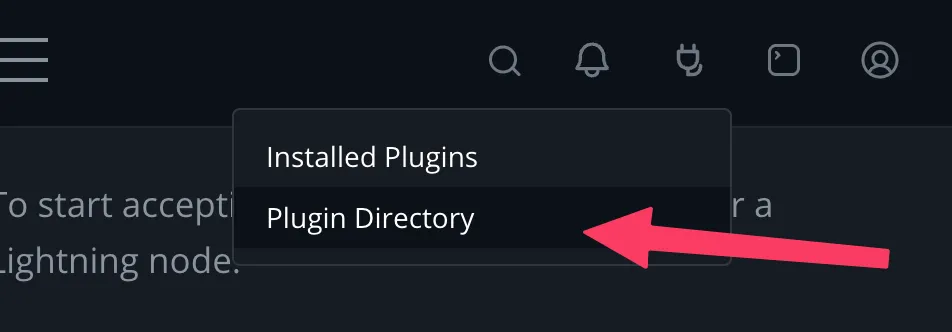
2. Click Plugin Directory.
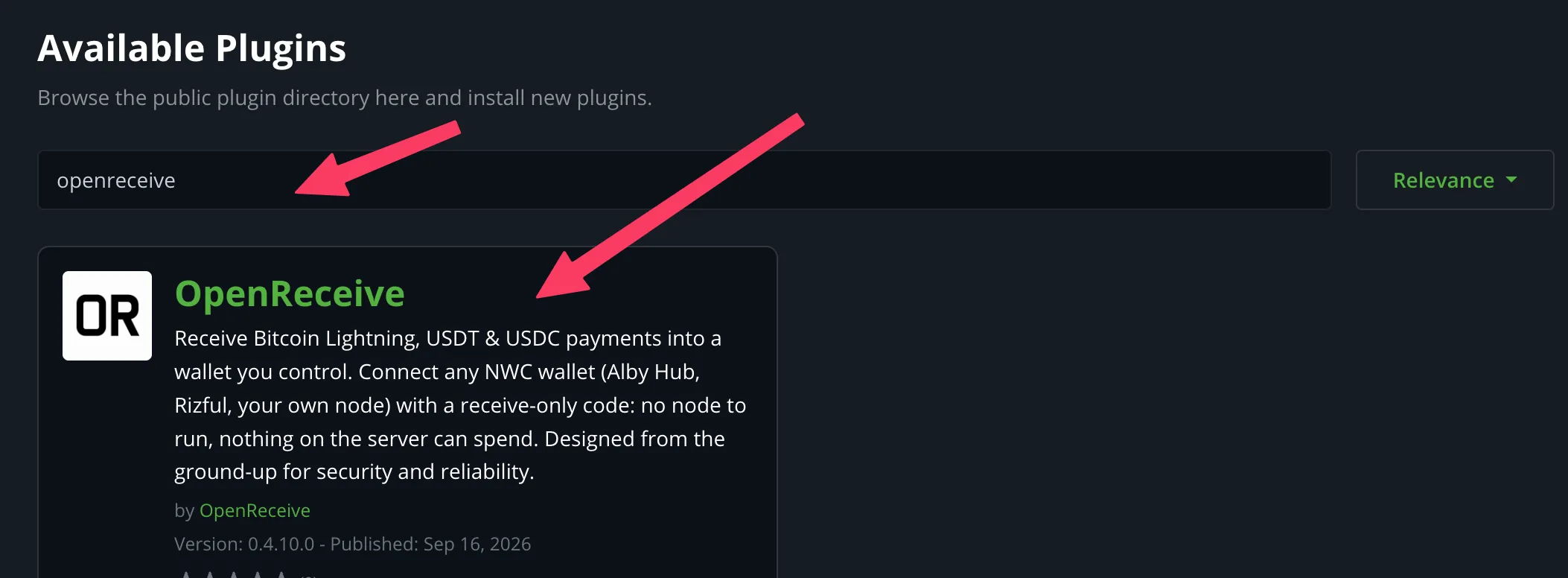
3. Search for openreceive and click the OpenReceive result.
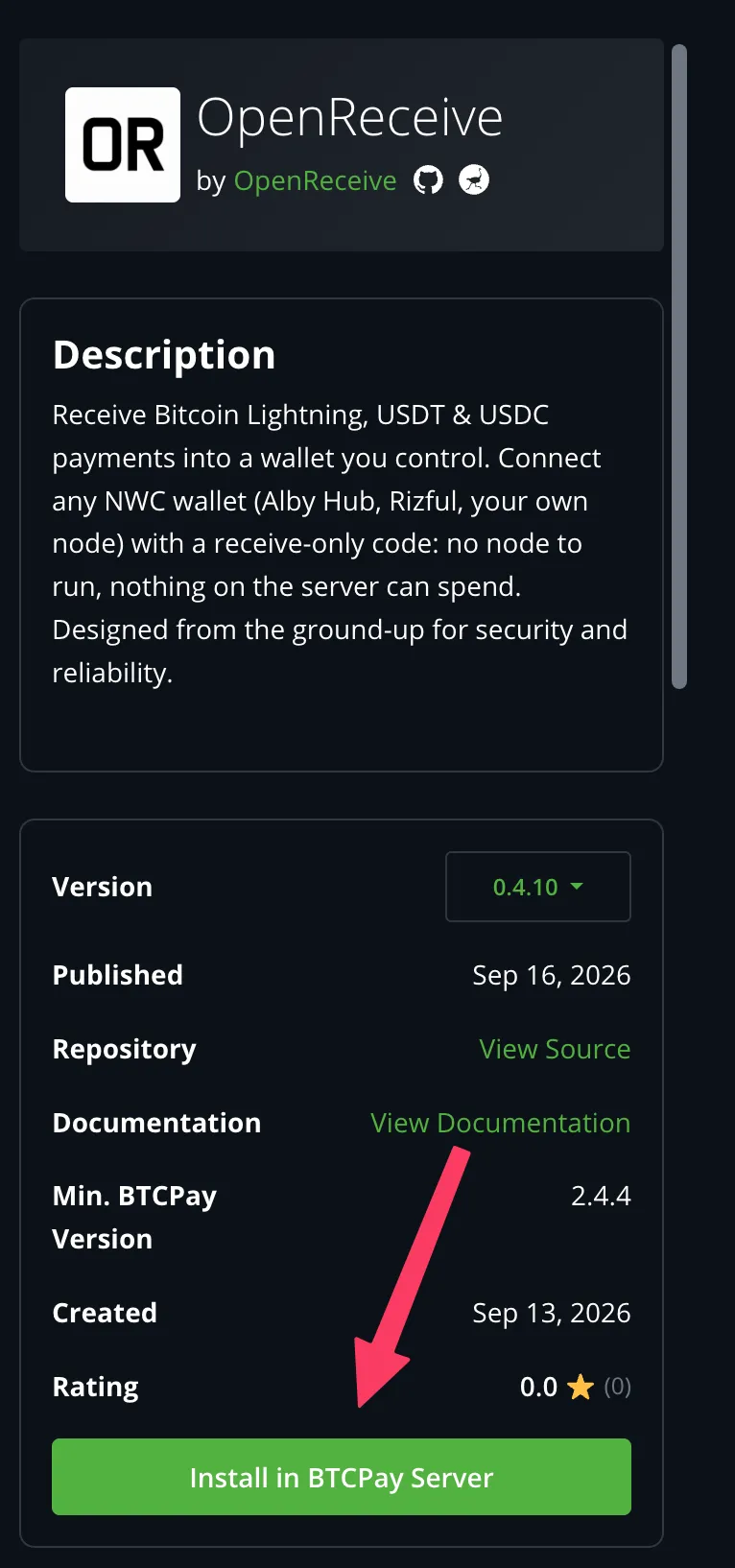
4. Click Install in BTCPay Server. Confirm when prompted, then click Restart now and wait for BTCPay to come back. Select your store and follow the setup below.
For the full quickstart, see https://openreceive.org/guides/quickstart-btcpay.
Setup
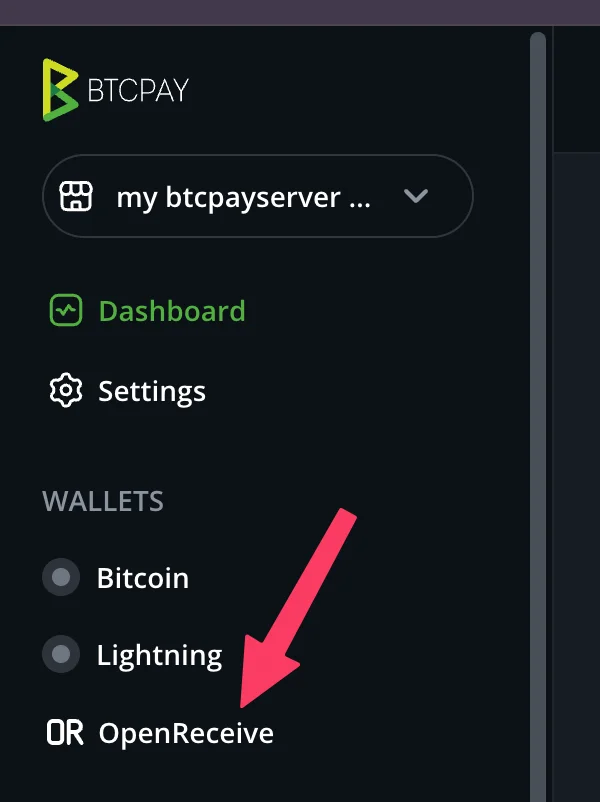
5. Open OpenReceive in the store’s sidebar, under Wallets.
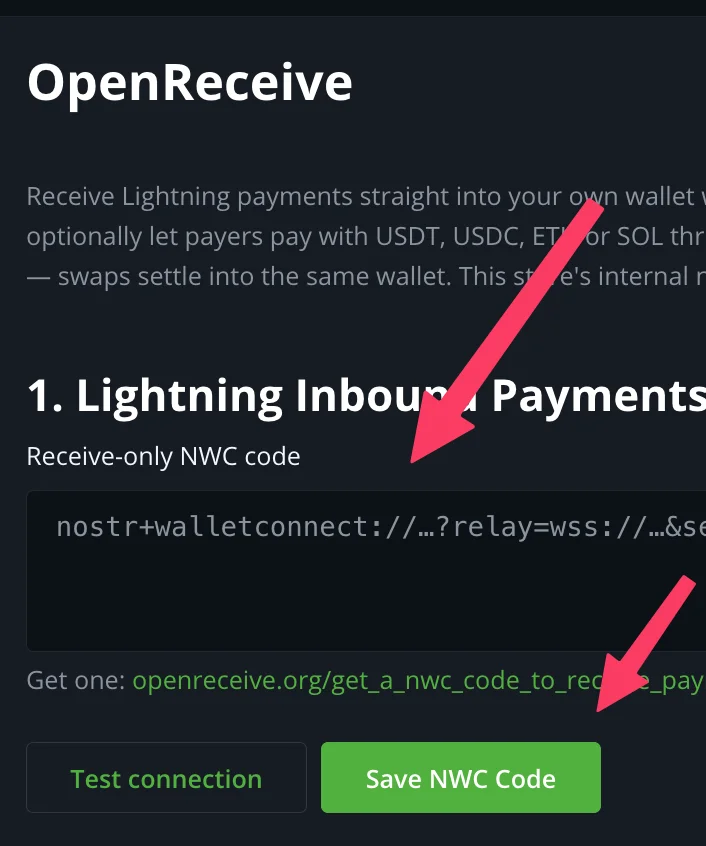
6. Paste your receive-only NWC code and click Save NWC Code. Test connection first if you want to see what the wallet supports. Get a code at https://openreceive.org/get_a_nwc_code_to_receive_payments.
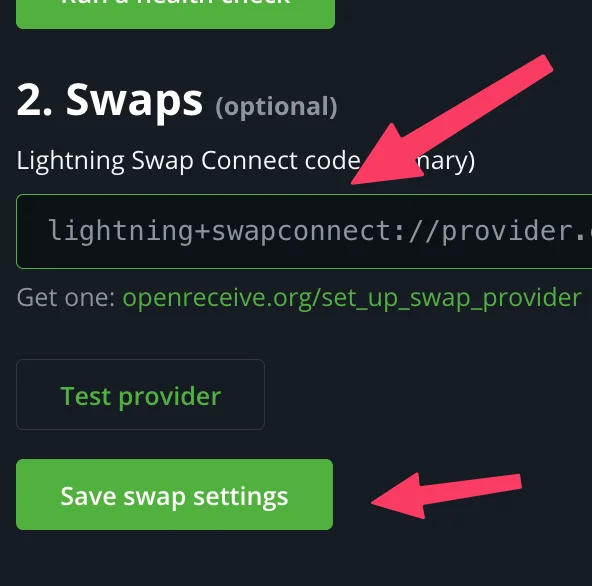
7. Optional: turn on swaps. Paste a Lightning Swap Connect code and click Save swap settings. Get one at https://openreceive.org/set_up_swap_provider.
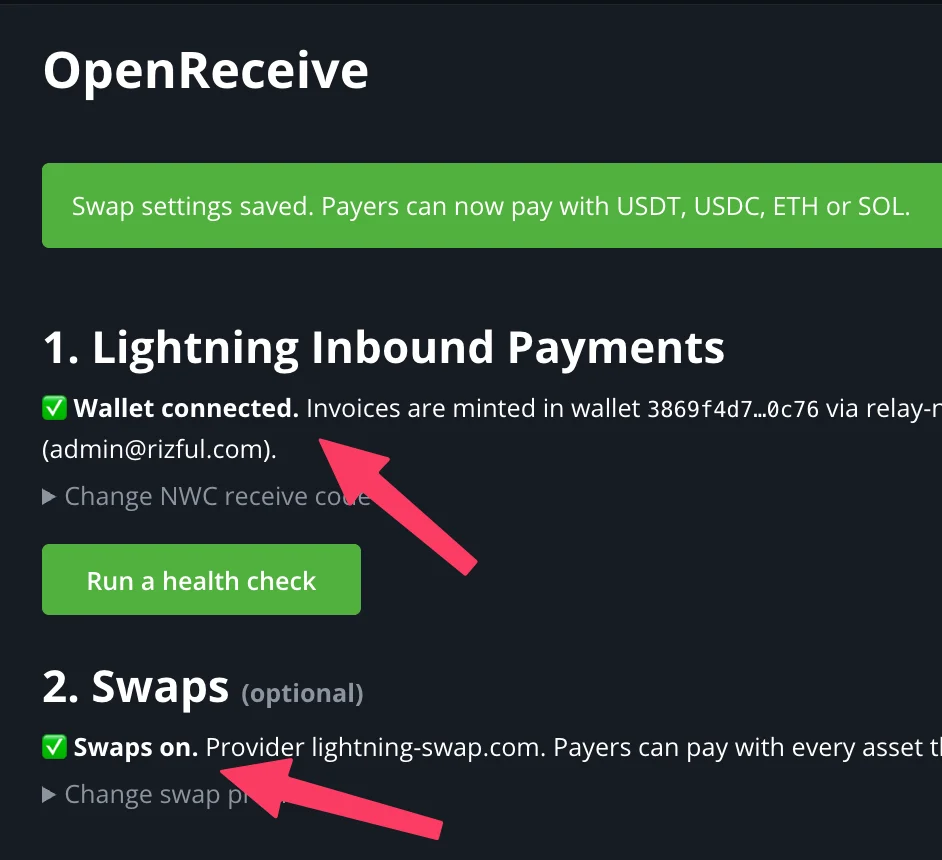
8. Done. The page shows Wallet connected and, if you set up a provider, Swaps on. Your wallet is now the store’s Lightning node.
Try it
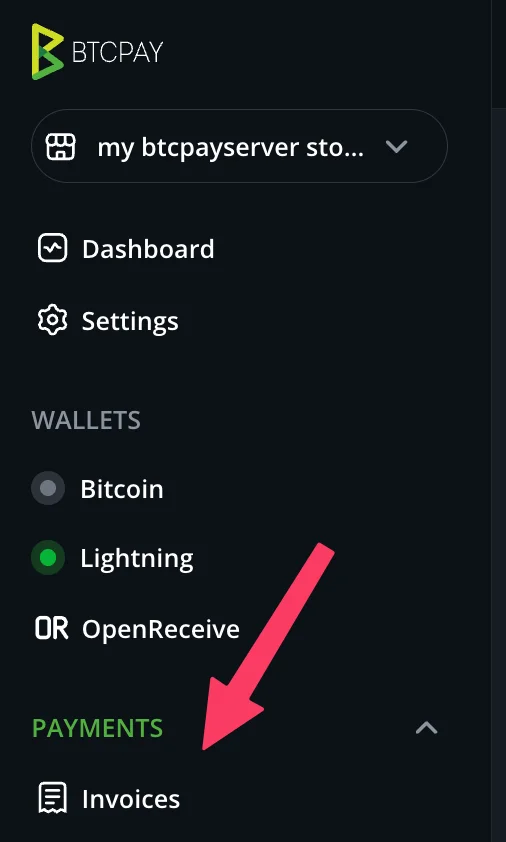
9. Open Invoices in the sidebar.
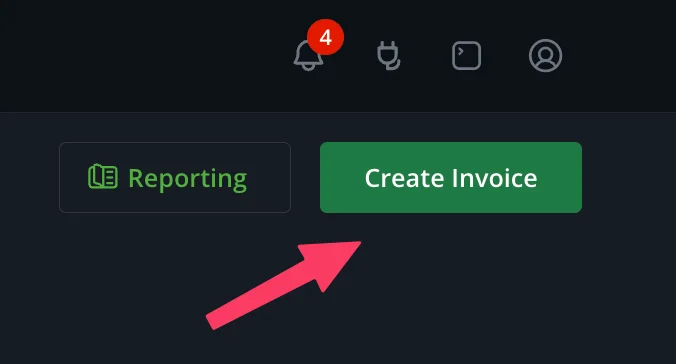
10. Click Create Invoice.
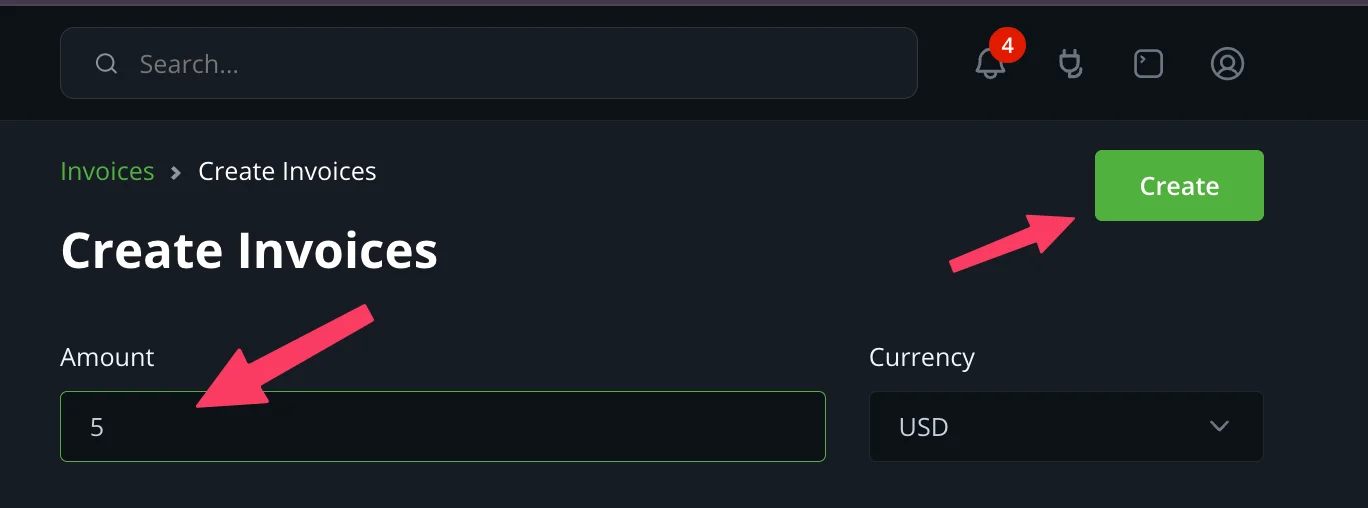
11. Enter an amount and click Create.
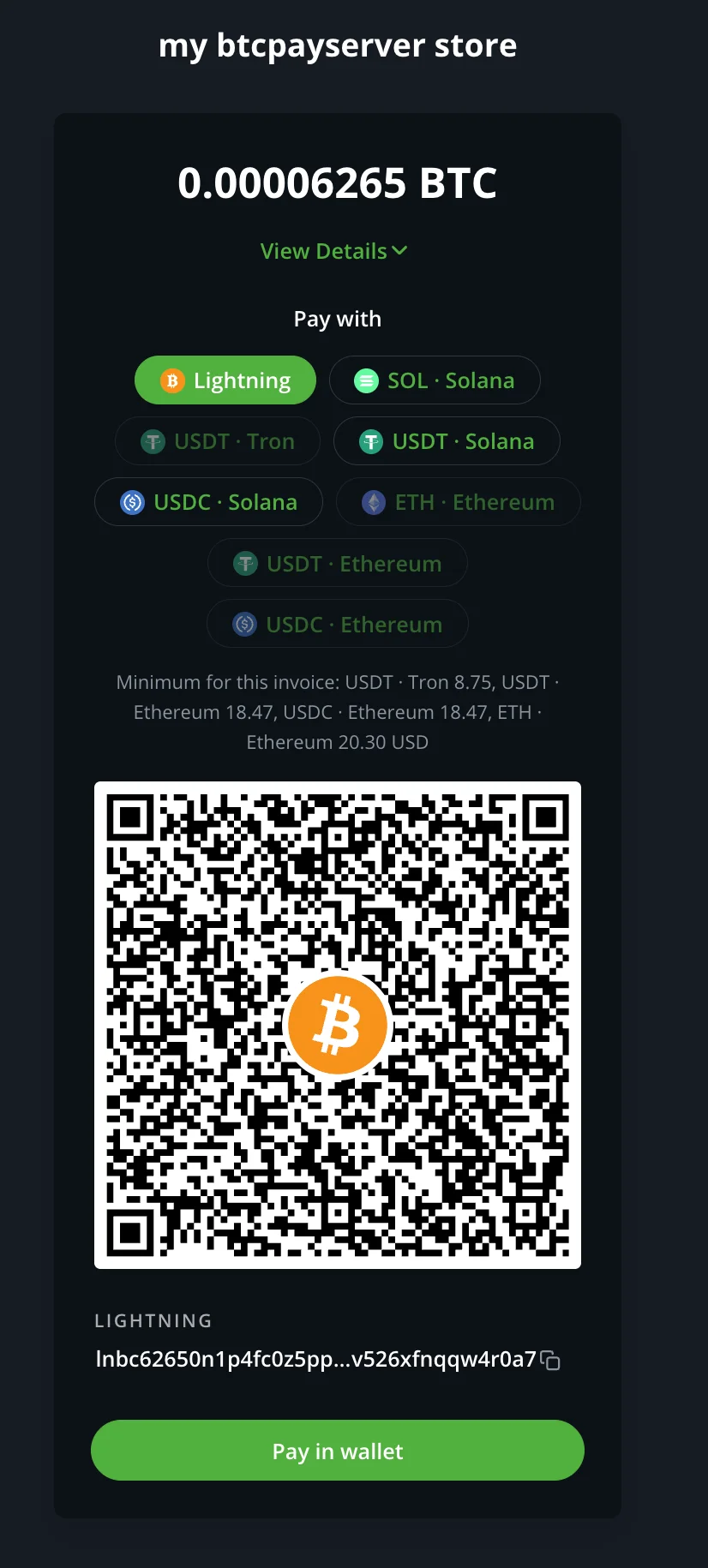
12. The checkout offers Lightning, plus one option per asset your swap provider supports. Lightning payments land in your wallet; swaps settle into it through the provider.
Good to know
- Receive-only. The plugin refuses an NWC code that can spend, and never calls a send method whatever the wallet grants. Lightning payouts and Lightning refunds are unavailable with this backend by design.
- Your wallet is the store’s Lightning node. BTCPay mints every invoice in it and records payments with its own settlement machinery. The internal node is never used.
- Run a health check on the OpenReceive page checks the connection, notifications, the provider and the invoice expiration, with a fix link on every failing probe.
Installing the plugin: https://openreceive.org/guides/quickstart-btcpay.
Every setting, Greenfield route, swap state and health probe:
https://openreceive.org/guides/btcpay-reference. MIT licensed; source at
https://github.com/OpenReceive/openreceive (packages/dotnet).
Payment recovery changes require a coordinated host/worker upgrade. See the payment safety upgrade and historical recovery procedure for additive migrations, selected legacy-account repair, retired swap refunds, and the provider budget scope.
Set up
Requires WordPress ≥ 6.6, Easy Digital Downloads ≥ 3, PHP ≥ 8.2, GMP and sodium.
1. Get a receive-only NWC code — get one here. It can issue invoices and watch for payment, and it can never spend from your wallet.
2. Get an LSC code for swaps (optional) — from a swap provider, only if customers should be able to pay in USDT, USDC, ETH or SOL.
3. Install the plugin
wp plugin install openreceive --activate4. Connect the wallet — paste the NWC code into the store's OpenReceive settings and test the connection; add the LSC code to switch swaps on.
Full WordPress + Easy Digital Downloads quickstart · Plugin source
How it runs
- Tested on
- WordPress 7.1 with Easy Digital Downloads 3.7, on PHP 8.2
- Databases
- MySQL 8, WordPress's own database
- Secrets
- The plugin's settings, encrypted with keys derived from WordPress's auth keys, or OPENRECEIVE_NWC_URI in wp-config.php
- Refunds
- Refund a settled Lightning payment from your own wallet: the wallet code is receive-only. A customer reclaims a swap deposit that never converted from the order's purchase confirmation page.
- Mobile apps
- No app SDK. Payers pay on the store's web checkout, and an app that opens it follows the same app store rules as any web checkout.
Practical questions
- Which currencies can customers pay with?
- Bitcoin over Lightning, always. With a swap provider configured, also USDT on Tron, Solana or Ethereum, USDC on Solana or Ethereum, ETH and SOL, each converted into the same Lightning payment. Automated swaps guide
- Where does the Bitcoin go?
- Into the wallet behind your NWC code. OpenReceive never holds funds: the invoice is minted in your wallet and the sats land there. Your server confirms settlement and runs your onPaid hook once per order. Payment storage guide
- What wallet do I need?
- Any wallet that issues receive-only NWC (Nostr Wallet Connect) codes, hosted or self-run. The code must be able to create invoices and read their status, and must not be able to spend. Get a receive-only NWC code
- What does it cost?
- OpenReceive is open source and free. Fees charged by your wallet provider, by a swap provider or by Lightning routing belong to those services and are outside OpenReceive's scope.
- What do I need to deploy?
- A server process with NWC_URI in its environment and a database for the payment tables. No background worker is required: settlement runs on the mounted routes, with an optional notification worker for faster confirmation. Deploying guide
Add OpenReceive to your WordPress + Easy Digital Downloads app
Copy agent directions · Full quickstart · Example repository · API reference · Guides